
If your TV shows karaoke video but no sound reaches the karaoke system, the problem is usually a broken audio path, not a broken speaker. In most homes, the fix is to confirm the TV is sending audio out, match that output to the correct karaoke input, and test one connection route at a time.
Written by Toan Ho — Tittac editorial team
Who this guide is for: Home karaoke users who can see YouTube, karaoke videos, or TV content on the screen, but cannot get the music audio to play through the karaoke amplifier, mixer, receiver, or speakers.
How this guide was prepared: This guide was refreshed for Tittac’s karaoke setup and troubleshooting cluster to focus on the most common TV-to-karaoke audio failures: wrong TV audio output, wrong amplifier input, HDMI ARC/eARC confusion, optical audio settings, loose cables, muted inputs, and unclear signal routing.
No sound from the TV to a karaoke system is frustrating because everything can look connected correctly while the speakers stay silent. The TV picture works, the remote works, the karaoke video plays, and the microphones may even seem fine, but the music never reaches the karaoke system.
This guide focuses on one exact symptom: the TV picture is working, but TV audio is not reaching the karaoke system. It is not a general sound-quality guide and not a buying guide. If you want the broader signal-flow picture first, start with the Step-by-Step Home Karaoke Setup Guide.
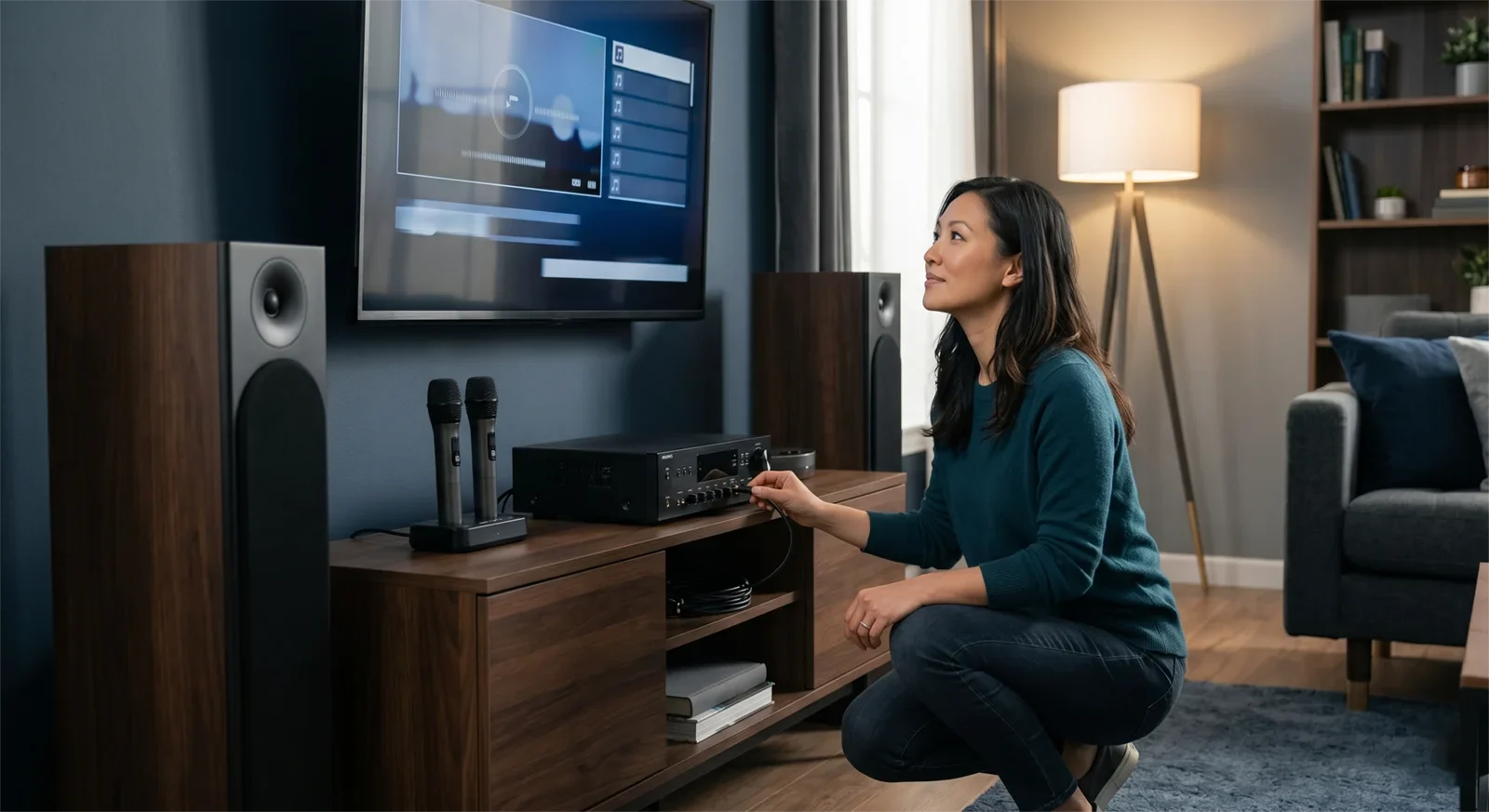
Table of Contents
Quick Answer
To fix no sound from TV to karaoke system, first make sure the TV is set to send sound to an external audio output. Then make sure the karaoke amp, mixer, or receiver is set to the matching input. Most no-sound cases come from the TV still using its own speakers, the karaoke system listening to the wrong input, or HDMI ARC, eARC, or optical settings not matching the cable route.
The fastest fix is to test one route at a time. Do not troubleshoot HDMI ARC, optical, Bluetooth, and multiple inputs all at once. Choose the actual connection path, match both ends to that path, then test again before changing anything else.
Confirm the Exact Symptom First
Before changing cables or digging through menus, confirm that you are solving the right problem. “No sound from TV to karaoke system” is more specific than “my karaoke system has no sound.” If microphones, Bluetooth music, or another source still plays through the karaoke speakers, the amplifier and speakers are probably working. The missing link is likely the TV audio path.
This distinction saves time. Many users start by raising master volume, changing microphone controls, or moving speaker cables when the TV was never sending usable audio out in the first place. If the TV picture works but the karaoke speakers stay silent, the useful question is: where does the TV audio stop in the chain?
Do a quick symptom check. Play one familiar video or app on the TV. Confirm whether the TV itself has sound, whether the TV is muted, and whether the karaoke system can make sound from another source. If TV audio plays only through the TV’s internal speakers, the issue is probably an output setting or cable-route problem. If the TV is silent everywhere, the problem may begin with the app, source device, or TV itself.
Also separate “no sound” from “delay” or “weak sound.” If audio reaches the karaoke system but feels late, that is a different problem. For delay issues, read Fixing Bluetooth Audio Delay in Karaoke. This guide is for the more basic failure where the TV audio does not arrive at the karaoke system at all.
Most Common Causes
Most TV-to-karaoke sound failures come from a few repeat problems. The gear may be fine, but one part of the signal path is not lined up with the next part.
The TV is still using its own speakers. A cable connection does not always make the TV automatically switch to external audio. Many TVs need you to choose external speakers, optical output, HDMI ARC/eARC, receiver, or audio system in the sound menu.
The karaoke system is on the wrong input. The TV may be connected correctly, but the amplifier, mixer, or receiver may still be listening to another source from the last session. This is especially common after switching between TV, Bluetooth, microphone mode, or another device.
The cable route and menu setting do not match. A TV may be physically connected by optical or HDMI ARC, while the active audio setting points somewhere else. That creates a setup that looks correct from the back of the equipment but sends no sound where you expect.
Too many audio routes are connected at the same time. When HDMI ARC, optical, Bluetooth, and extra adapters are all left in the system, it becomes harder to know which path is actually active. A clean test path is much easier to fix than a crowded one.
The karaoke input is muted or turned down. The karaoke system may still work for microphones while the TV input is muted, too low, assigned incorrectly, or connected to the wrong input jacks.
The connection method needs a matching setting. HDMI ARC, eARC, and optical are not always plug-and-play in every home. The cable matters, but the TV audio menu and receiving input matter just as much. If you are unsure which route is best, review HDMI vs Optical for Karaoke Systems.
Step-by-Step Fix Order
The best way to fix no sound is to follow one clean order. This prevents random changes and helps you find the exact failure point.
Step 1: Confirm the TV content has audio. Try a different video, app, or input. If only one app or one video is silent, the problem may not be the karaoke connection.
Step 2: Check mute and TV volume. Make sure the TV is not muted and the source is not silent. This sounds basic, but it rules out a simple cause before you start changing the system.
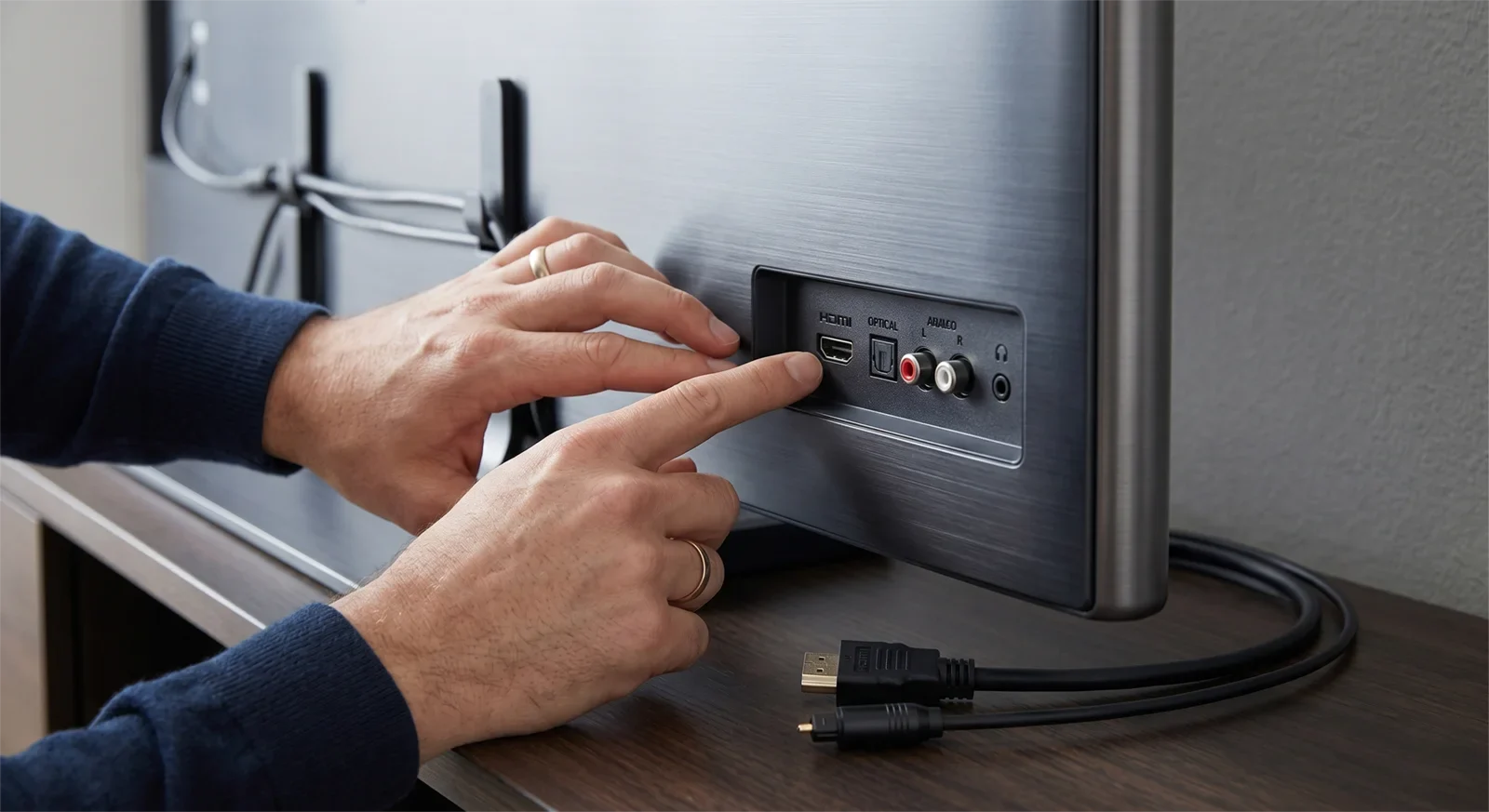
Step 3: Set the TV to external audio. Open the TV sound settings and choose the correct external audio path. Depending on the TV, this may be called external speaker, audio system, receiver, HDMI ARC, eARC, optical, digital audio out, or similar.
Step 4: Choose one connection route to test. Do not test HDMI ARC, optical, and other routes at the same time. Pick the actual cable path you want to use and ignore the others until that path is confirmed.
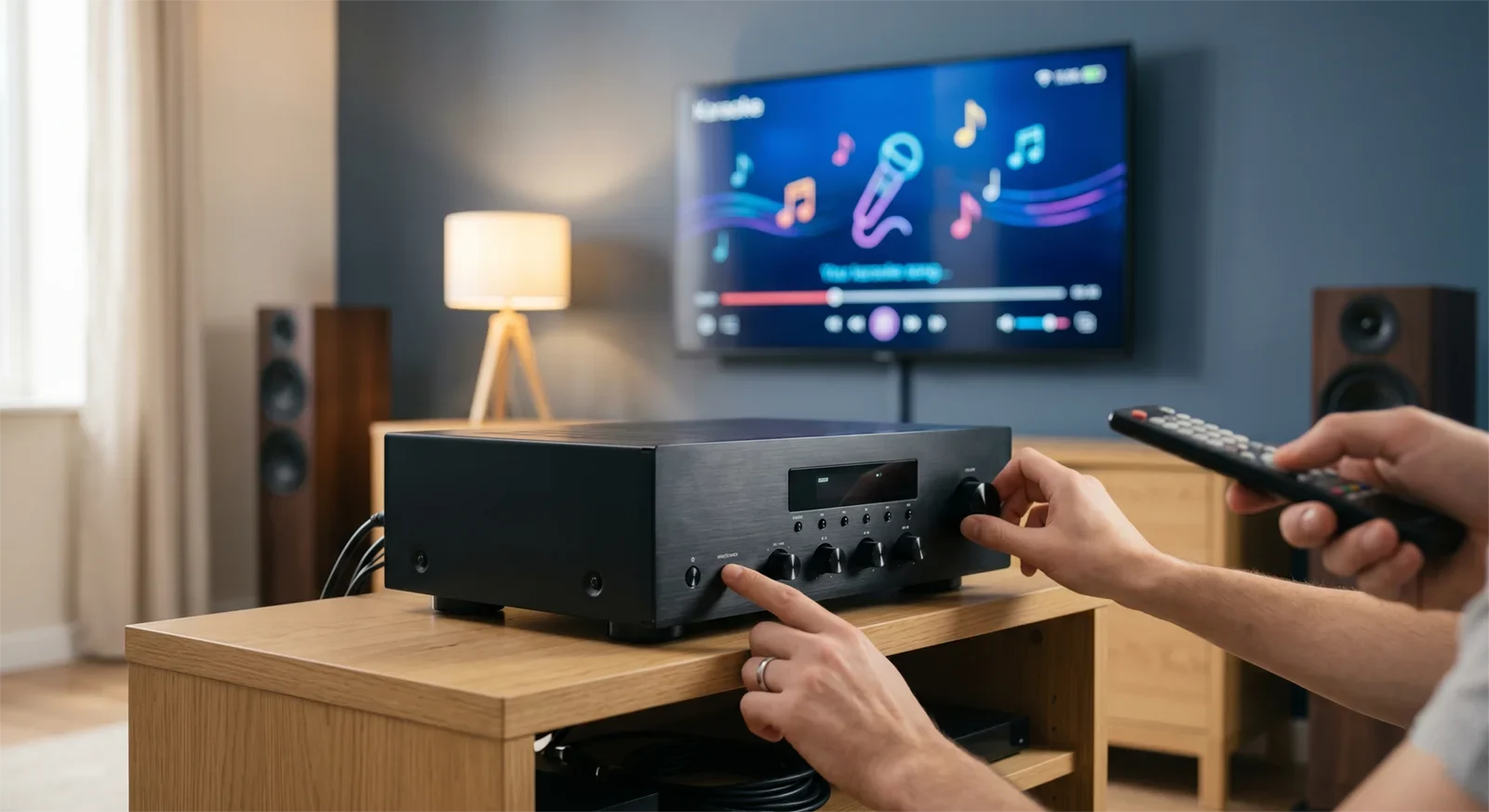
Step 5: Match the karaoke input to the cable. If the TV audio cable goes into an optical input, AUX input, HDMI ARC input, or another labeled input, the karaoke amplifier or receiver must be set to that same source. If the system is listening to a different input, the result will be silence.
Step 6: Reseat the cable on both ends. Remove the cable fully, reconnect it carefully, and make sure it is seated in the correct ports. A cable can look connected while still being loose enough to fail.
Step 7: Raise the correct input level slowly. Do not raise every knob at once. Check the TV audio level, the karaoke input level, and the master volume in a controlled way so you do not create sudden loud sound when the signal returns.
Step 8: Test after one change at a time. After each change, play the same test video again. If you change five settings before testing, you may not know which change solved the problem.
Step 9: Simplify the setup if the problem keeps returning. If the same no-sound issue happens every session, the system may be too confusing. A cleaner TV-to-karaoke path is often better than relying on memory. For a broader connection walkthrough, read How to Connect a Karaoke System to a Smart TV.
HDMI ARC, eARC, and Optical Audio Checks
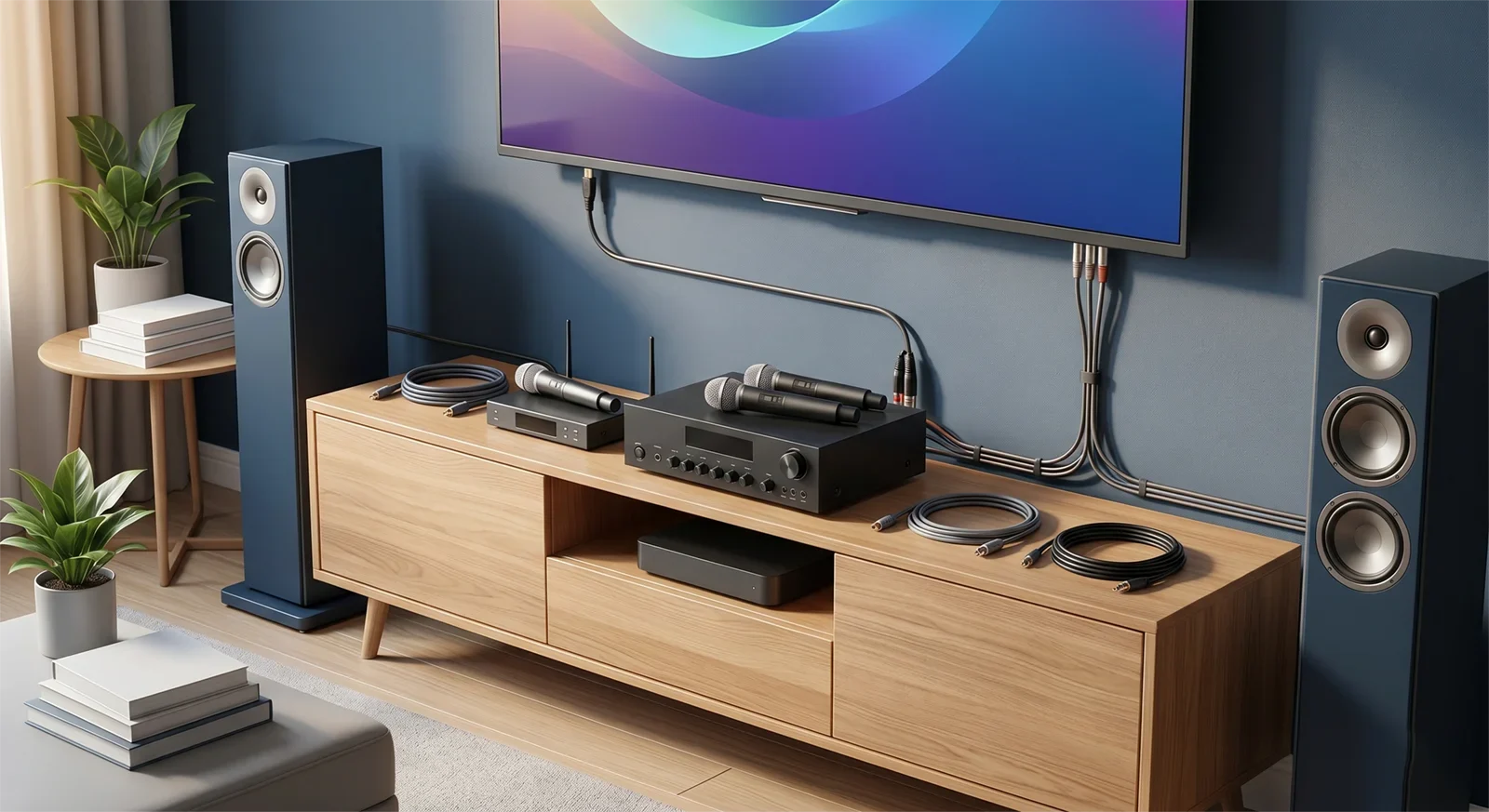
If you are using HDMI ARC or eARC, make sure the HDMI cable is plugged into the TV port labeled ARC or eARC. A regular HDMI port may show video but not return TV audio to the audio system. Also check that the connected audio device is set to the correct HDMI ARC input.
Some TVs also require HDMI control or CEC settings to be enabled before ARC works reliably. The wording varies by brand, but the idea is the same: the TV and receiving device need to recognize each other as part of the same audio path.
If you are using optical audio, confirm that the optical cable is connected to the TV’s digital audio output and the karaoke system’s matching optical input. Optical cables can also feel slightly loose if they are not fully seated, so reconnect both ends carefully.
Digital audio format can also matter. Some systems handle stereo PCM more reliably than surround formats. If the TV has a digital audio format setting and the karaoke system stays silent, try a simple stereo or PCM setting instead of a surround or auto format.
The practical rule is simple: the physical connection and the TV menu must agree. If the cable says optical but the TV is set to internal speakers, the karaoke system will not receive the sound. If the TV is set to HDMI ARC but the cable is plugged into a non-ARC port, the path is still broken.
When the Problem Is Not the TV
Sometimes the symptom sounds like a TV problem, but the real issue is somewhere else. If one app is silent but another app works, the app or source content may be the cause. If the TV audio works through internal speakers but not through the karaoke system, the issue is likely the output path or receiving input.
The karaoke system can also be the problem even if microphones work. Microphones and TV audio may use different input sections. A mic signal can pass normally while the TV input is muted, turned down, assigned incorrectly, or connected to the wrong port.
Another common issue is a setup that changes too much between sessions. If family members switch Bluetooth, TV, HDMI, optical, and different input modes, the system may be fine but difficult to operate consistently. In that case, the real fix is not more tweaking. The fix is to create one normal connection route and use it the same way every time.
If you keep running into different problems after each setup, review Common Karaoke Setup Mistakes to Avoid. Many no-sound problems come from avoidable setup habits rather than damaged equipment.
Simple Prevention Checklist
- Use one main TV-to-karaoke audio path instead of several possible routes.
- Label the correct karaoke input if family members use the system often.
- Keep the TV audio output setting consistent after each session.
- Do not leave the karaoke system on a random input after using Bluetooth or another source.
- Check HDMI ARC/eARC ports carefully instead of assuming every HDMI port works the same way.
- For optical audio, make sure the cable is firmly seated on both ends.
- Test with one familiar video before guests arrive.
- Write down the normal TV output and karaoke input settings if multiple people use the system.
A reliable karaoke setup should not require guesswork every time someone wants to sing. Once you find the working TV audio path, keep it simple and repeatable.
Frequently Asked Questions
Why do I get video on the TV but no sound through the karaoke system?
This usually means the video source is working, but the TV audio is not being sent to the karaoke system. Common causes include the TV still using internal speakers, the karaoke amp being on the wrong input, or HDMI ARC, eARC, or optical settings not matching the cable route.
Should I test HDMI ARC and optical at the same time?
No. Testing multiple audio paths at once makes the problem harder to diagnose. Pick one route, configure the TV and karaoke system for that route, and test it before trying another method.
How do I know if the problem is the TV or the karaoke system?
Check whether the TV can send sound to any external audio path, then check whether the karaoke system can play sound from another source. If the karaoke system works with microphones or Bluetooth but not TV audio, the issue is probably the TV output path, the selected input, or the cable between them.
Can a loose cable cause complete silence?
Yes. A cable can look connected but still fail if it is not seated firmly. Reseating the cable on both ends is one of the simplest early checks because it rules out a basic physical problem quickly.
Why does my karaoke system work with microphones but not TV music?
Microphones and TV audio often use different input paths. The microphone section may work while the TV input is muted, turned down, disconnected, or not selected on the amplifier, mixer, or receiver.
What should I do if the sound comes back but disappears again later?
Make the setup more repeatable. Use one main connection path, keep the TV output setting consistent, and leave the karaoke system on the correct input when the session ends. If the path changes every time, the same no-sound problem is likely to return.